
The NekoToon inspector
Selecting a NekoToon material shows NekoToon's own inspector. It draws the same settings as lilToon 2.4.1, arranged into switchable sections with a neon theme.
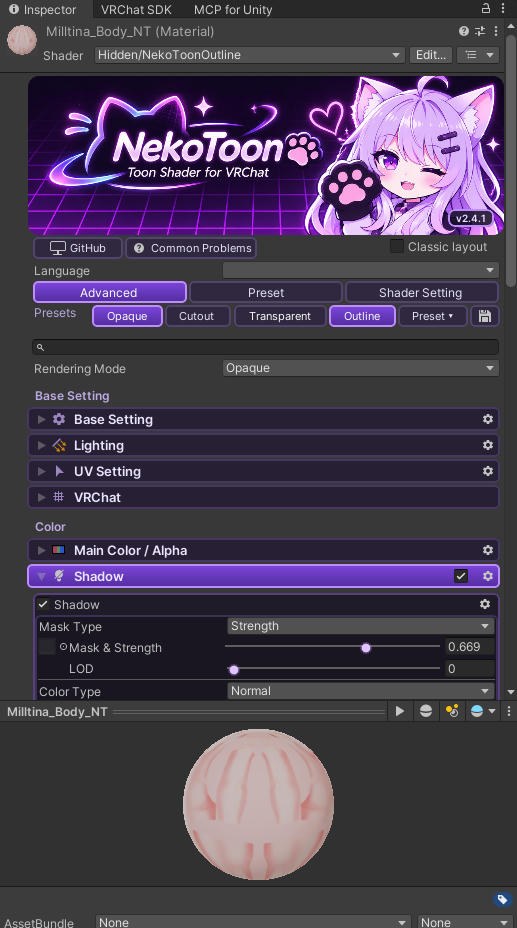
Header#
- Banner with the installed version in the corner.
- GitHub opens the release page, Common Problems opens Troubleshooting.
- Classic layout switches to the original lilToon look (plain foldouts, small logo). Useful when you follow a lilToon tutorial. The choice is saved per user on your computer, not in the material, and you can switch back from the same checkbox.
- Language changes the inspector language (English, Japanese, Korean, Chinese).
Editor modes#
| Advanced | All material settings. This is where you work most of the time. |
|---|---|
| Preset | Apply or save presets (skin, hair, cloth, …). See Presets, Shader Setting & Tools. |
| Shader Setting | Project-wide options: build-time optimization, build size options and default values. See Shader Setting. |
Presets row#
Only in Advanced mode, for the normal shader types:
- Opaque / Cutout / Transparent switch the rendering mode (the active one is highlighted). Other modes are in Base Setting. Multi-variant materials hide these three buttons because their mode is a setting inside the material.
- Outline turns the outline variant on or off.
- Preset ▾ lists the installed presets by category and applies one to all selected materials.
- The save icon opens the preset window to save the current material as a preset.
Sections#
Each feature is a section with a header bar:
- Click the header to expand or collapse it. The open section is highlighted in purple.
- The checkbox on the right turns the feature on or off (Shadow, Emission, MatCap, Rim Light, …). It is the same switch as the one inside the section, and it works with Undo.
- The menu button at the far right offers Copy, Paste, Paste with textures, Reset and Open manual, which opens that section's page on this site.
Sections are grouped as in the sidebar of this site: Base, Color, Normal Map & Reflection and Advanced. Which sections appear depends on the shader type: for example Fur only appears on fur materials.
Search box#
The search field above the sections filters them by name, handy on large materials.
The inspector only changes how settings are shown. Materials look the same whichever layout you use, and they are fully compatible with lilToon's settings.